
Arc Loader Documentation
Everything you need to install, configure and troubleshoot Arc Loader — the wiki and the FAQ in one searchable place. Use the search box, or browse the topics on the left.
What is Arc Loader?
Arc is a bootloader: a small program that starts Synology DSM on hardware Synology did not build it for. You install Arc on a USB stick (or a small virtual disk), the computer boots from that stick, and Arc then hands control over to DSM.
The three things to know before anything else
- The USB stick must stay plugged in. It is not just for installation — DSM needs it on every single start. Pull it out and the system will not boot.
- Your files are not on the stick. Only boot data lives there. All your data sits on your normal hard drives, exactly as it would on a real Synology.
- Use a fast USB stick, USB 3.0 or newer. A slow or worn-out stick is the single most common cause of a crash during boot (a "kernel panic").
Before you start: requirements & limits
Check this list before you buy or wipe anything. Most failed installations come down to one of these points.
What your hardware needs
- An x86-64 / amd64-capable processor — Intel from 2nd generation onwards, or AMD from FX onwards.
- At least 6 GB of RAM (4 GB is the absolute minimum, but expect problems). This applies to both real hardware and virtual machines.
- At least one SATA or SAS drive for DSM itself. The only exceptions are epyc7002 and
geminilakenk models, which can use the
nvmesystemadd-on to install onto an NVMe drive. - A DHCP server on your network. A static IP is also supported, but can cause problems during installation.
CPU instructions required by DSM version
Newer DSM releases require newer processor features. If your CPU is older, use an older DSM:
| DSM version | Processor must support |
|---|---|
| DSM 7.4 | BMI2 and MOVBE |
| DSM 7.3 | MOVBE |
| DSM 7.2 | Runs on older hardware (AES only needed for encryption) |
Hard limits you cannot work around
- Maximum 8 drives per storage controller (per PCIe address).
- Maximum 26 drives per system.
- Using Arc Patch limits you to one device model per Synology account.
Storage controllers: what DSM accepts
The DSM kernel itself only really speaks SATA. What else works depends on whether your chosen model uses a Device Tree — see the glossary if that term is new.
- Device Tree (DT) models: SATA and HBA controllers work. Hardware RAID and SCSI do not.
- Non-DT models: SATA, HBA, RAID and SCSI may all work.
Which download do I need?
Pick the file that matches where you are installing. When in doubt on real
hardware, take the .img.
| File | Use it for |
|---|---|
.img | Writing to a USB stick, and for Proxmox or Unraid |
.vmdk | VMware ESXi / vSphere |
.vmdk-dyn | VMware Workstation |
.ova | Ready-made template for hypervisors |
.vhd | Hyper-V — limited support, requires a workaround |
Version numbers & branches explained
Version numbers (x.y.z)
- x — major release: the loader itself changed.
- y — minor release: new features or larger changes.
- z — micro release: bug fixes.
Branches
- arc — for all supported DSM models. This is the one to pick unless you know otherwise.
- essential — only for DSM models based on the Linux 5.x kernel.
Glossary: the terms used on this page
Every term below appears somewhere in this documentation. Nothing here assumes you already know it.
- DSM
- DiskStation Manager — the operating system that runs on Synology devices. It is what you see in your browser once everything works.
- Loader / bootloader
- The small program (Arc) that starts before DSM and makes your hardware look like a Synology device to it.
- Model / platform
- The Synology device Arc pretends to be, for example DS920+. The platform (for example geminilake) is the hardware family that model belongs to, and it decides which features you get.
- Device Tree (DT)
- A newer way DSM describes hardware to itself. On DT models Arc works out your disk layout automatically. On non-DT models you configure it yourself with a portmap. Which one applies is a property of the model you pick — see the platform table.
- Portmap
- A map telling DSM which disk sits on which controller port. Only non-DT models need it. Getting it wrong is the usual reason DSM reports "no hard drives found".
- HBA
- Host Bus Adapter — an expansion card that connects many drives and passes them through individually, without building a RAID itself.
- Hardware RAID
- A controller card that merges several physical drives into one logical drive before the operating system sees them. DSM generally prefers you not do this.
- Add-on
- An optional extra you switch on while building the loader, to enable something specific such as graphics support or fan control.
- LKM
- Loadable Kernel Module — the driver layer Arc injects into DSM. It comes in a
prodand adevflavour; if hardware is not detected, the other one sometimes helps. - Kernel panic
- A crash of the system core, usually shown as a wall of text during boot. With Arc, a slow or failing USB stick is the most common cause.
- Arc Config Mode
- The loader's own configuration menu, shown on a connected display or
reachable at
http://YOUR-IP:7080. This is where you choose your model, add-ons and settings. - Arc Patch
- An option that makes Synology's online services (QuickConnect, Active Backup, and others) work on non-Synology hardware.
BIOS / UEFI settings (real hardware)
These settings are the difference between a system that boots first time and one that hangs. Go through them before you flash anything. Every BIOS names things slightly differently — look for the closest match.
Required
- Reset the BIOS/UEFI to its default settings first, so no leftover tweak interferes.
- Set the integrated SATA controller to AHCI mode.
- Disable Fast Boot and Quiet Boot.
- Disable Secure Boot.
- Disable fTPM and Trusted Computing.
- Disable ASPM.
- Set the USB stick as the first boot device.
Recommended
- Use UEFI boot mode if your board offers it.
- Enable ACPI — it is required for CPU frequency scaling — but disable C1E, which can trigger a kernel panic.
- Set the CPU power/performance mode to "OS controlled" if that option exists.
If you use a RAID or HBA card
- Disable the onboard SATA controller if no drives are connected to it.
If it still will not boot, try disabling these
- Serial console / serial port
- rBAR (Resizable BAR)
- SR-IOV
- x2APIC / Extended APIC
If you want to run virtual machines inside DSM (VMM)
- Enable the virtualization extensions: Vanderpool / VT-x (Intel) or SVM / AMD-V (AMD).
- You may need to disable Intel VT-d or AMD IOMMU — this one depends on your board, so try both ways.
Virtual machine setup (ESXi, Proxmox, Unraid, Hyper-V)
Which hypervisors work
| Hypervisor | Status |
|---|---|
| VMware ESXi | Supported — ESXi 7, 8 and 9, and the matching Workstation versions |
| QEMU / KVM | Supported — Proxmox 8 (stable), Proxmox 9 (problems with some Linux-based systems), Unraid 7 (stable) |
| XEN-based | Not officially supported, but may work |
| Hyper-V | Not officially supported. The storage controller must be passed through to the VM. |
Settings that apply to every hypervisor
- Set the boot environment (firmware) to UEFI / EFI.
- Attach the Arc Loader disk at SATA 0:0.
- Attach your data drives at SATA 0:1–0:7, SATA x:0–x:7 or SCSI x:0–x:7.
- Arc creates the portmap automatically for Device Tree models. For non-DT models it will show you a selection instead.
VMware-specific
- Set the guest operating system to Other 4.x Linux (64-bit), or Other 5.x Linux (64-bit) for SA6400 and the 25-series models.
- If you use an LSI Logic SAS controller, add
disk.EnableUUID = "TRUE"to the VM configuration file: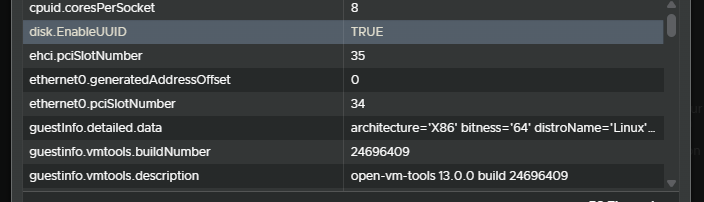
- For VMM, Containers and Docker, set Promiscuous Mode to Accept.
- Disable host swap: Host → Manage → Swap → Disable.
- Use the
vmtoolsadd-on in Arc, or install the community package from the DSM Package Center.
Proxmox / Unraid: QEMU Guest Agent
- Use the
vmtoolsadd-on in Arc, or install the community package from the DSM Package Center.
Proxmox: automated setup script
The toolkit by @And-rix sets everything up for you. Download it:
curl -fsSL https://pvetoolkit.auxxxilium.tech -o /root/arc-toolkit.sh && chmod +x /root/arc-toolkit.sh
Then run it and follow the steps on screen:
/root/arc-toolkit.sh
Building the loader & installing DSM
Step 1 — Write the loader to your boot media
Download the latest Arc image and write it to your USB stick, or to a virtual SATA disk at position 0:0 in your hypervisor. Then set your BIOS to boot from that media first.
Step 2 — Open Arc Config Mode
You have three ways in. Any one of them is fine:
- On a monitor: connect a display — the loader interface appears by itself.
- In your browser: go to
http://YOUR-IP:7080. This starts automatically on boot and is the most comfortable option. - Over SSH: connect, then run
arc.sh.
The browser and SSH routes both ask you to log in. Use user root with password
arc.
Step 3 — Choose your model and build
Select your model, then follow the on-screen steps: Build Loader, then Boot Loader. Only models compatible with your hardware are offered to you.
Step 4 — Install DSM
- Be patient: the first boot can take up to 20 minutes.
- Open
http://YOUR-IP:5000— not :5001. DSM redirects you itself if needed. - DSM installs onto all connected disks during setup. You cannot pick one specific disk when several are attached.
- If installation fails on a non-DT model, check your portmap configuration.
Updating Arc and updating DSM
Updating the Arc loader
- Best method: replace the boot image with the latest Arc version. Be aware: hardware encryption keys are lost when you do this.
- Alternative: use the Update option inside Arc Config Mode.
- You can restore your previous configuration afterwards, but not every setting stays compatible with a newer loader.
- Running a loader older than 2.5.5? You must install, configure and boot 2.5.5 first. Only then can you update to a later version.
- Details for each release are in
#loader-releasenoteson Discord, or in the GitHub release notes.
Updating DSM itself
- You can update DSM safely without touching Arc, as long as the build number stays the same (for example 69057).
- Any update is supported as long as the loader supports that build number — for example 69057 U1 through U5.
- You can also switch DSM versions from within Arc Config Mode.
Getting back into Arc from a running DSM
Connect to DSM over SSH and run one of these:
loader-reboot.sh config    # reboot into Arc Config Mode
loader-reboot.sh update    # reboot into Arc Update Mode
Downgrading DSM
- Boot into Arc Config Mode.
- Go to Arc Options → DSM Version and choose the version you want.
- Rebuild the loader.
- Go to DSM Options → Allow Downgrade DSM.
- Boot DSM.
Model & platform selection helper
The table below is the quickest way to answer "can this model do what I need?". Use the filter and search box to narrow it down.
Prefer to be guided? Answer a few questions about your hardware instead
Arc only offers you models that are compatible with your hardware, so you cannot pick something that definitely will not work.
True for every platform
- Intel processors: 2nd generation Core i (Sandy Bridge, 2011) through 2nd generation Core Ultra (Arrow Lake / Lunar Lake). Note that Core Ultra series 2 works as a processor, but its integrated graphics do not.
- AMD processors: Ryzen, Threadripper and EPYC across all generations (Zen 1 to Zen 5), including the dense-core Zen 4c/5c parts, which the scheduler detects and weights correctly. Older FX, Bulldozer and Phenom II chips work but are known to cause problems.
- SSD cache: supported on all platforms.
- Software RAID controllers: not supported on any platform.
| Platform | Device Tree | Kernel | CPU limit | HBA | HW RAID | SCSI | USB storage | Intel graphics | AMD graphics | NVIDIA | NVMe |
|---|---|---|---|---|---|---|---|---|---|---|---|
| apollolakeDS718+, DS918+, DS1019+ … | No | 4.x | Up to 8 threads | Yes | Yes | Yes | Internal ✅External ✅ | Experimental | No | Community package 🔵 | Cache ✅†Storage 🔵System ❌ |
| broadwellDS3617xs … | No | 4.x | Up to 16 threads | Yes | Yes | Yes | Internal ✅External ✅ | No | No | Community package 🔵 | Cache ✅†Storage 🔵System ❌ |
| broadwellnkDS3622xs+, RS4021xs+ … | No | 4.x | Up to 24 threads | Yes | Yes | Yes | Internal ✅External ✅ | No | No | Community package 🔵 | Cache ✅†Storage 🔵System ❌ |
| broadwellnkv2SA3410, SA3610, FS3410 … | Yes | 4.x | Up to 24 threads | Experimental | No | No | Internal ❌External ✅ | No | No | Community package 🔵 | Cache ✅Storage 🔵System ❌ |
| denvertonDVA3219, DVA3221, DS2419+ … | No | 4.x | Up to 16 threads (requires FMA3 / MOVBE) | Yes | Yes | Yes | Internal ✅External ✅ | No | No | Partial native 🔵 / community package 🔵 | Cache ✅Storage 🔵System ❌ |
| epyc7002SA6400 | Yes | 5.x | Up to 24 threads | Yes | No | No | Internal ❌External ✅ | Yes* | Yes* | Community package 🔵 | Cache ✅Storage 🔵System 🔵 |
| epyc7003— | Soon | — | Coming soon | Soon | Soon | Soon | — | Soon | Soon | — | — |
| epyc7003ntbPAS7700 | Soon | — | Coming soon | Soon | Soon | Soon | — | Soon | Soon | — | — |
| geminilakeDS720+, DS920+, DS423+ … | Yes | 4.x | Up to 8 threads | Experimental | No | No | Internal ❌External ✅ | Experimental | No | Community package 🔵 | Cache ✅Storage 🔵System ❌ |
| geminilakenkDS425+ … | Yes | 5.x | Up to 8 threads | Yes | No | No | Internal ❌External ✅ | Yes* | Yes* | Community package 🔵 | Cache ✅Storage 🔵System 🔵 |
| icelaked— | Soon | — | Coming soon | Soon | Soon | Soon | — | Soon | Soon | — | — |
| purleyFS6400, HD6500 | Yes | 4.x | Up to 64 threads | Experimental | No | No | Internal ❌External ✅ | Experimental | No | Community package 🔵 | Cache ✅Storage 🔵System ❌ |
| r1000DS923+, DS723+, DS1522+, RS422+ | Yes | 4.x | Up to 8 threads | Experimental | No | No | Internal ❌External ✅ | No | No | Community package 🔵 | Cache ✅Storage 🔵System ❌ |
| r1000nkDS725+ | Yes | 5.x | Up to 8 threads | Yes | No | No | Internal ❌External ✅ | Yes* | Yes* | Community package 🔵 | Cache ✅Storage 🔵System 🔵 |
| v1000DS1821+, DS1621+, DS2422+, DS1823xs+ … | Yes | 4.x | Up to 16 threads | Experimental | No | No | Internal ❌External ✅ | No | No | Community package 🔵 | Cache ✅Storage 🔵System ❌ |
| v1000nkDS925+, DS1525+, DS1825+, RS2825RP+ … | Yes | 5.x | Up to 16 threads | Yes | No | No | Internal ❌External ✅ | Yes* | Yes* | Community package 🔵 | Cache ✅Storage 🔵System 🔵 |
Scroll the table sideways to see every column. The platform name stays in place.
No platform matches that filter.
Legend: ✅ works · 🔵 works with an add-on, a community package or only partly · ❌ not supported
* Requires a custom kernel for full support. Select it while building the loader.
† NVMe cache may require an add-on on these platforms.
Non-DT models need their portmap adjusted whenever you change the number of disks. Not every model runs on every piece of hardware.
Hard drives & SSDs
Requirements for your drives
- SAS drives must use a block size of 512e or 4kn to be recognised at all.
- Every drive requires a unique serial number. Duplicates cause conflicts, which happens most often with RAID and SCSI controllers. In a hypervisor, prefer an HBA over LSI Logic SAS.
- Check the portmap setting in Arc Config Mode.
Should I let drives hibernate?
Synology recommends turning hibernation off. Constantly spinning down and back up wears drives out faster than simply leaving them running — NAS drives are built for 24/7 operation.
Details are in the Synology hibernation tutorial.
Graphics: Intel, AMD and NVIDIA
What is possible depends on your platform — check the platform table first.
What is supported (SA6400 and other Linux 5.x models)
- Intel: built in up to 14th generation Intel processors, and up to Core Ultra 1xx with the custom kernel.
- AMD: built in up to GCN 5, and up to RDNA 3.5 with the custom kernel.
- NVIDIA: depends on which driver version you choose to install.
Setting it up: Intel or AMD
- In DSM, open Package Center → Community and install Video Compute Runtime (DSM 7.2 or newer).
- From the same place, add the support package for your hardware: Video Compute Runtime – Intel or – AMD.
- Check it worked in Arc Control → System Monitor.
Setting it up: NVIDIA
- In DSM, open Package Center → Community and install the NVIDIA Driver package (DSM 7.2 or newer).
- Check it worked in Arc Control → System Monitor.
Intel graphics on other models (i915)
- Enable the i915 add-on under Arc Config Mode → Arc DSM Options → Addons.
- Rebuild the loader.
- Check it worked in Arc Control → System Monitor.
Passing Intel graphics through to an Arc virtual machine
Add these options under Arc Config Mode → DSM Options → Cmdline:
intel_iommu=on
i915.enable_guc=3
i915.max_vfs=7
HP servers & Microservers
HP machines are popular for home servers and have a few known quirks.
- Network card not working (tg3 chipset)? Add the module
N tg3.koas described under adding modules manually. - DSM will not boot? Set Directboot to
"true". Some HP Microservers require this. - Using an HP P420i controller? Follow this video tutorial.
Portmap: telling DSM where your disks are
A portmap tells DSM which disk sits on which controller port. If DSM reports "no hard drives found", this is usually why.
The easy route
If SataPortMap, SataRemap and AhciRemap mean nothing to you: open Sysinfo in Arc, look at the drive mapping it shows you, and pick the option marked as recommended. That is usually the right answer.
Two rules that save a lot of trouble
- Avoid leaving empty SATA slots where you can — it makes the configuration much simpler.
- In a virtual machine, map the loader to
0:0and data drives to consecutive ports:0:1, 0:2, 0:3or1:0, 1:1, 1:2and so on.
What each option does
- SataPortMap (Active Controller Ports)
- Automatically removes unused SATA ports after the last active one. Usually the best choice.
- SataPortMap (Maximum Controller Ports)
- Sets the map to the controller's maximum number of ports, whether they are used or not.
- SataRemap (Remove Empty Drives)
- Removes empty or dummy ports. Useful when you see gaps on your controller. On ESXi this removes empty slots (such as drive 1). All drives must be mapped to the SATA controller — SAS and SCSI ports will not be reachable.
- AhciRemap (Remove Empty Drives)
- The same as SataRemap, but for AHCI controllers.
USB drives: internal or external?
This decides how DSM treats USB drives you plug in.
- USB Disks internal: enabled — USB drives appear as internal hard drives.
- USB Disks internal: disabled — USB drives appear as external devices, the way they do on a real Synology.
- Combining "USB Disks internal: enabled" with an external controller (HBA, RAID) can make USB drives take priority and throw off your drive count.
- Never build a storage pool across different ports or drive types — do not mix USB and SATA drives in one pool. DSM installs onto all connected drives automatically, and if USB controllers come up late, the system can break.
Add-ons: what each one does
Some app-specific patches require a reboot after installation before they take effect. To remove an add-on: deselect it, rebuild the loader, then choose Force Reinstall DSM in Grub or in Arc Config Mode → Power Menu.
System add-ons (always on, nothing to do)
- disks
- Adjusts the DSM storage map to match your actual hardware.
- eudev
- Device management service for hardware compatibility.
- localrss
- Local RSS server, needed for DSM installation.
- misc
- Essential utilities.
- updatenotify
- Tells you when an Arc update is available.
- wol
- Enables Wake on LAN.
Optional add-ons (you choose these)
- acpid
- Power management, so things like the physical power button work.
- addincards
- Support for M.2 adapter cards such as QNAP QM2 or Synology E10Mxx / M2Dxx.
- allowdowngrade
- Lets you manually install AME 3.1.0, Surveillance Station 9.2.0 and Video Station 3.1.0 (DSM 7.2.2 only).
- arcdns
- Enables the ArcDNS dynamic DNS service.
- bootwait
- Ensures all devices are ready before booting continues.
- cpufreqscaling
- Dynamic CPU frequency scaling. Needs a reboot after DSM setup.
- cpuinfo
- Shows the CPU frequency dynamically and correctly.
- dbgutils
- Debug tools — enable this when you need to collect boot logs for a bug report.
- expands
- Updates CA certificates and USB IDs.
- fancontrol
- Control fan speeds from inside DSM.
- hdddb
- Adds drives to the DSM compatibility database.
- hostspatch
- Stops DSM from calling home, which protects Synology services.
- i915
- Enables Intel integrated graphics (Apollo Lake and Gemini Lake only).
- ledcontrol
- LED control for Ugreen systems (SA6400 only).
- notification
- Sends system status notifications to Discord or a webhook.
- nvmecache
- Use NVMe drives as cache (supported models only).
- nvmevolume
- Use NVMe drives as storage volumes in DSM.
- nvmesystem
- Install DSM itself onto an NVMe drive. Do not use this if you also want to use other disks. SA6400 only.
- powersched
- Time-controlled power supply scheduling.
- ramfix
- Corrects the amount of RAM DSM reports. Enable it under Arc Config Mode → DSM Options → Cmdline.
- sensors
- Temperature monitoring for the CPU and other components.
- storagepanel
- Adjusts the DSM storage display to match your installed drives. Adjustable under Arc Config Mode → Arc DSM Options → StoragePanel Options.
- ups
- Forces a UPS shutdown during standby.
- vmtools
- Guest tools for VMware and QEMU/KVM virtual machines.
Fan control, LEDs & notifications
Fan control
Adjust the temperature thresholds and PWM values in Arc Control. After changing them, allow about 3 minutes for the PWM retraining to finish before judging the result.
LED control (Ugreen systems)
| LED | What the colours mean |
|---|---|
| Power | Green below 60 °C · Yellow below 90 °C · Red above 90 °C |
| Network | Blue when connected · Red when disconnected · flashing when active |
| Disk | Green below 50 °C · Yellow below 70 °C · Red above 70 °C or on SMART faults · flashing when active |
Notifications
Arc can notify you through Discord or a webhook. Set this up under Arc Config Mode → Loader Options → Notification Settings.
- Discord notifications require a registered Access Token. Webhooks always work.
- You get notified when: the loader mode changes, DSM starts, SMART reports a warning, the CPU goes above 80 °C, or a drive goes above 60 °C.
Arc Patch: enabling Synology online services
Without Arc Patch, everything in DSM works except Synology's online services: Active Backup for Business, Advanced Media Engine, QuickConnect and push notifications.
Loader 2.7.0 and newer current
- No registration needed. You do not have to register a HardwareID any more — just select Arc Patch while configuring the loader.
Loader older than 2.7.0 outdated
- Arc Patch no longer works on these versions. It was removed from the server and will not function on loaders older than 2.7.0.
- The loader still works with all other DSM functions — only the online services are unavailable.
- See updating Arc to move to 2.7.0 or later.
Online features & Access Token (loader 2.7.0+)
Three features require an Access Token: Remote System Status, Online Config Backup and Discord notifications. Everything else works without one.
Registering your Access Token
- Boot into Arc Config Mode.
- Select Online Options.
- Select Access Token.
- Open arc.auxxxilium.tech and log in with your Discord account.
- Register the Access Token shown to you.
DSM will not start or takes forever
First, be patient
The first DSM boot after installation can take up to 20 minutes. This is normal.
Open http://YOUR-IP:5000 — not :5001. DSM will redirect you itself.
If it really will not come up
- Change DSM Kernelload from
"poweroff"to"kexec". - Work through the network problems page.
- Open Arc Config Mode → Sysinfo and check whether your hardware was recognised.
- Still stuck? Consider sharing a screenshot on Discord for help.
Network problems & no IP address
Work through these in order. Each one fixes a different common cause.
- No IP address after boot? Power the device off and power it on again (avoid a reboot).
- Check the BIOS: Fast Boot and Quiet Boot must be disabled. They can stop the network card from initialising in time.
- Problems reaching GitHub, Synology or during DSM installation? Disable IPv6 and DoT / DoH (encrypted DNS) in your router.
- DSM not visible on the network at all? Switch the LKM setting from
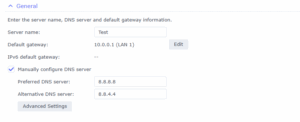
"prod"to"dev". Which one works depends on your hardware — try both. - Updates failing? Arc needs a stable connection to GitHub. Try switching your DNS
servers to
8.8.8.8and8.8.4.4.
No hard drives found
DSM says it cannot find any hard drives. To work out why, reboot into Arc Config Mode and open Sysinfo — that is part of the loader, not DSM, and it lists the hardware Arc detects.
There are two common causes.
1. Your controller is not supported by the model you chose
- DT models do not support RAID, SCSI or HBA controllers. The exception is SA6400, which does support HBA.
2. The port map is wrong (non-DT models)
Non-DT models may need the correct port map settings. Set them under Arc Config Mode → Arc DSM Options → SATA Port Map, where the recommended option is marked with an asterisk (*). See portmap for what each option means.
Adding drivers (modules) manually
If a device such as a network card does not work after boot, its driver (a "module") may simply not be loaded. You can add it by hand.
- Go to Arc Config Mode → Arc Options → Modules → Edit Modules copied to DSM.
- Add a new line above
# kvm. - To add a new module: write
N YOUR_MODULE.ko. You can find the module name under Arc Config → Sysinfo. - To overwrite an existing module (for example
mlx4_xx.koormlx5_xx.koon SA6400): useFinstead ofN. - Press TAB to reach OK, then ENTER.
Example: HP servers with a tg3 network chip need the line N tg3.ko.
"Not enough memory" after an update
The installer says there is not enough memory
Clear the cache by opening this address in your browser:
http://YOUR-IP:5000/webman/clean_system_disk.cgi
This usually happens on systems that were migrated from DSM 6 to DSM 7.
DSM shows the wrong amount of RAM
You need Ramfix. Enable it under Arc Config Mode → DSM Options → Cmdline.
QuickConnect, Mail Plus & other Synology services
QuickConnect does not work
- Make sure Arc Patch is enabled under Arc Config Mode → Arc DSM Options → SN/MAC.
- Use Google DNS inside DSM (
8.8.8.8/8.8.4.4). Some DNS providers block the connection QuickConnect needs.
Mail Plus Server does not work
- It requires an active Arc Patch.
- Log out of your Synology account, then restart.
Storage Manager or CPU values look wrong
Storage Manager looks odd
The storagepanel add-on adapts the display to the drives you actually have installed. You can adjust it manually under Arc Config Mode → Arc DSM Options → StoragePanel Options.
CPU frequency scaling does not work
This only works on real hardware with ACPI enabled in the BIOS/UEFI. It will never work in a virtual machine, because the hypervisor overrides it.
The CPU frequency shown is wrong
Enable the cpuinfo add-on to get a correct, dynamic frequency display.
Loader offline mode
The loader checks for an internet connection at startup. If you are running without internet, verify your network first using Networkdiag, then enable manual offline mode from the menu.
I picked the wrong model
Change the model and rebuild the loader:
- Go to Arc Config Mode → Choose Model and pick the right one.
- Rebuild the loader.
- On the next start, DSM will offer you a migration. Accept it.
Getting help & collecting boot logs
#readme-first 2.2.
How to collect a boot log
- Enable the dbgutils add-on.
- Rebuild the loader and boot DSM.
- Fetch the logs under
Arc Config Mode → Loader Options → Grep Logs, or open
http://YOUR-IP:PORT/webman/get_logs.cgifrom recovery mode.
A screenshot of Arc Config Mode → Sysinfo is almost always the first thing anyone helping you will ask for. Have it ready.